
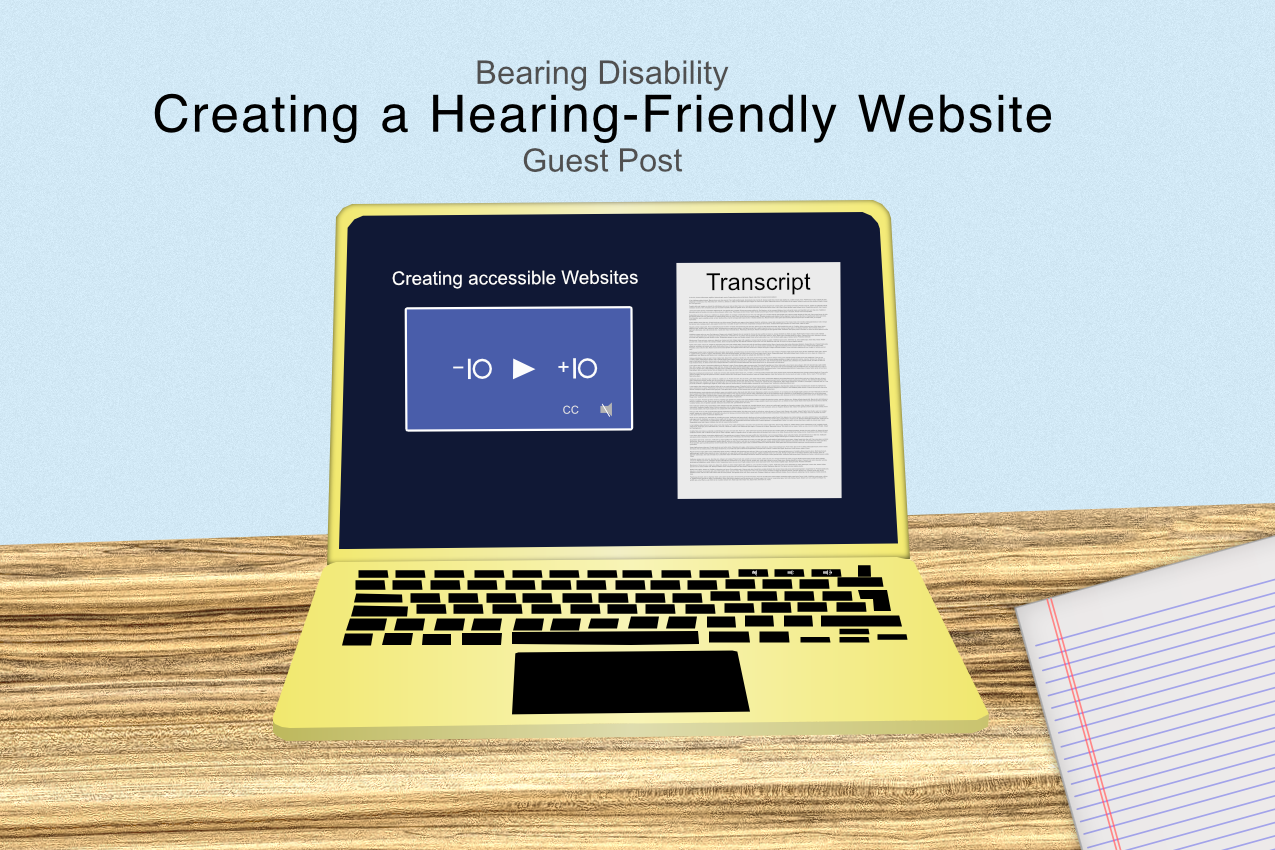
When people can’t fully access your content, they can’t fully become your customers—no matter how great your product is. A website that is not hearing-friendly excludes many, but most of all, those with hearing loss. Ensuring visitors with hearing impairments can enjoy and access your site is both the right thing to do and smart business: clearer communication, better SEO, and higher conversions.
Brief Hearing-Friendly Tips
- Prioritise captions, transcripts, and visual cues anywhere sound carries meaning
- Turn every video or audio element into text people can scan, search, and quote
- Offer multiple contact paths (chat, SMS, relay services) so sales and support stay inclusive
What “hearing-friendly” really means
Hearing accessibility isn’t just “add captions and call it a day”. It’s designing so no one misses the message when audio is off, unavailable, or overwhelming. That means text equivalents for spoken content, clear visual indicators for alerts, and quiet alternatives to phone-only support such as chatbots and understanding the benefit of Relay UK. Adding these elements will ensure as many people as possible can access your website.
Quick wins you can ship this week
- Add closed captions to every video and descriptive captions to short social clips embedded on your site
- Publish downloadable transcripts for podcasts, webinars, and product demos
- Replace “watch the video to learn more” with a short text summary and skimmable bullet points
- Offer non-voice support options (live chat, email, SMS) on every page that lists a phone number
Hearing-friendly checklist
- Inventory all audio and video: product demos, testimonials, podcasts, training, hero banners with sound
- Create captions for each video (not auto-captions only—review for accuracy, timing, and speaker labels)
- Post transcripts beside the media player and include key timestamps for long-form content
- Provide visual equivalents for audio cues (e.g., a visible toast alert when an error chime would play)
- Ensure keyboard-only navigation and visible focus states for players and controls
- Offer at least two contact methods besides phone (chat/SMS/email) and display them consistently in header and footer
- Test with the sound off on desktop and mobile—can a first-time visitor grasp the message in seconds?
Make hearing-friendly access part of your brand promise
When you commit to accessibility, conversions improve across the board—busy commuters watch muted videos, open-plan offices mute by default, and many users skim before they commit. The key is to ensure users can access core information, review simple, high-impact tips and fold them into your publishing checklist.
Table: common hearing-access barriers and practical fixes
| Barrier you’ll spot on many sites | Why it’s a problem | Better practice | Bonus upside |
| Autoplay hero video with voiceover and no captions | Essential info is locked in audio | Add captions and on-screen text; provide a “pause” control | Clearer message for all users, better Core Web Vitals if you compress |
| Podcast episode page with just an audio player | Search and skimming are impossible | Publish a clean transcript with headings and timestamps | SEO lift and easier quoting for press |
| Phone-only support or sales | Excludes customers who prefer text or relay services | Add chat, SMS, and email; note TTY/relay availability | Faster resolution and better tracking |
| Sound-only alerts in apps or forms | Errors go unnoticed | Pair sounds with visible labels and ARIA live regions | Fewer abandoned forms and tickets |
| Auto-generated captions with errors | Miscommunication and frustration | Edit captions for accuracy, speaker tags, and sound cues | Professionalism and brand trust |
Video and audio that include everyone
- Captions: Aim for high accuracy, readable contrast, and proper punctuation. Include non-speech info like [music], {laughter}, or (applause) when it adds meaning (choose the bracket style that you like and stick with it)
- Transcripts: Use headings, speaker names, and key takeaways at the top; linkable timestamps help users jump to the right moment
- Players: Offer play/pause, keyboard-accessible controls, and a download option for the transcript next to the player
Write like everyone’s reading (because many are)
- Front-load the value: a one-sentence summary above the video tells visitors what they’ll learn without pressing play
- Use scannable structure: short paragraphs, descriptive subheads, bullets, and callouts
- Avoid “click to hear” language; say what’s inside in plain text
Don’t hide the help
People with hearing impairments often prefer text-first support. Make alternatives obvious.
- Show chat and SMS entry points on product pages, pricing, and checkout—not just in “Contact”
- Publish response-time expectations for each channel
- If you accept relay calls, say so (and train staff to handle them respectfully)
Content production workflow (so you never forget captions again)
- Plan: Add “caption file + transcript” as required deliverables in your content brief
- Produce: Record with a script outline to speed caption editing; capture speakers’ names and terms
- Edit: Clean up auto-captions, add sound cues, format transcript with headings
- Publish: Embed media, place transcript on the page, include a 2–3 sentence summary above the fold
- QA: Test with audio muted, keyboard-only navigation, and a screen reader
- Maintain: Update captions/transcripts when you revise the video or correct product names
Design cues that do the heavy lifting
- Pair colours with icons and labels so meaning isn’t colour- or audio-only
- Provide clear focus states and visible labels for field errors
- Use toast notifications with readable copy (and no forced timeouts) so messages don’t vanish before they’re read
Inclusive events and webinars
- Choose a platform that supports live captions and pinning interpreters
- Share slides and key points ahead of time; send the recording and transcript promptly
- Offer a quiet Q&A channel (chat or form) in addition to live audio questions
Measure what matters
- Track media completion with captions on vs off
- Monitor engagement with transcript downloads and “jump to timestamp” clicks
- Review support-channel usage and resolution time across chat/SMS/email vs phone
- Ask one question in post-purchase surveys: “Was any information hard to access?” and act on patterns
FAQ
Aren’t auto-captions good enough now?
They’re a solid starting point, but they still miss names, jargon, and context. Always review and correct them, add speaker tags, and include important sound cues.
Do transcripts hurt video views?
Typically the opposite. Transcripts help people decide a video is worth their time and make it easier to re-find and share the exact moment they need.
Is hearing-friendly accessibility only for media-heavy sites?
No—forms, alerts, customer support, and small UI sounds all matter. Any time audio conveys meaning, provide a visible equivalent.
How much time will this add to publishing?
With a simple workflow and a captioning vendor or tool, most teams add 10–20% to production time at first; it shrinks as you template steps and reuse styles. Also consider using GDPR-compliant storage solutions.
Bottom line
If your website speaks clearly without sound, more people will hear you. Start with captions and transcripts, add visual cues for every audio-dependent moment, and offer text-friendly support. Make accessibility a habit in your publishing workflow and you’ll earn trust, widen your audience, and turn more visitors into customers.
A website that is not hearing-friendly excludes many, from those with hearing impairments to those in environments where playing sounds is just not fesible. This guest post has been written by Tanya Lee. I hope you find it useful.